SaneTodo makes it easy to move from email overload to task clarity. With just a drag-and-drop, you can transform any email into a task — with full context preserved.
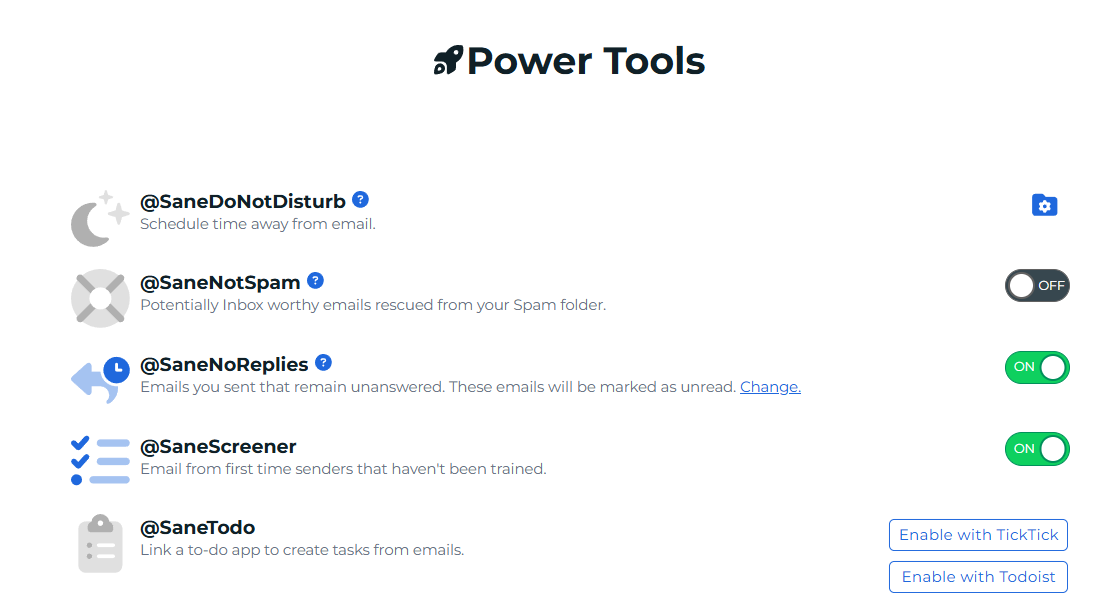
Currently SaneToDo works with:
🚀 How It Works
Drag Any Email Into @SaneTodo
- Move an email into the special @SaneTodo folder.
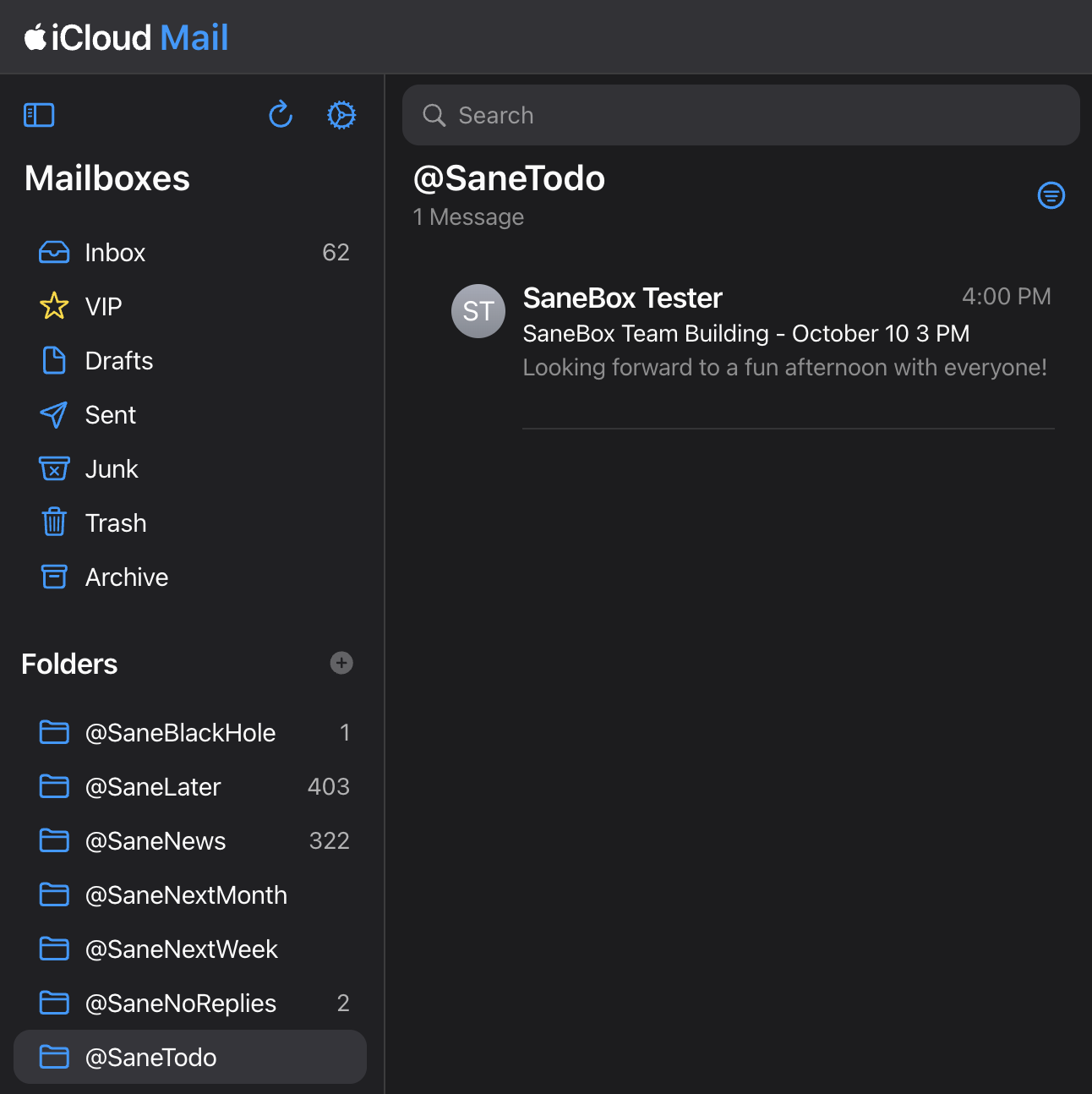
- Instantly, that email becomes a new task.
ToDoIst
Tick Tick
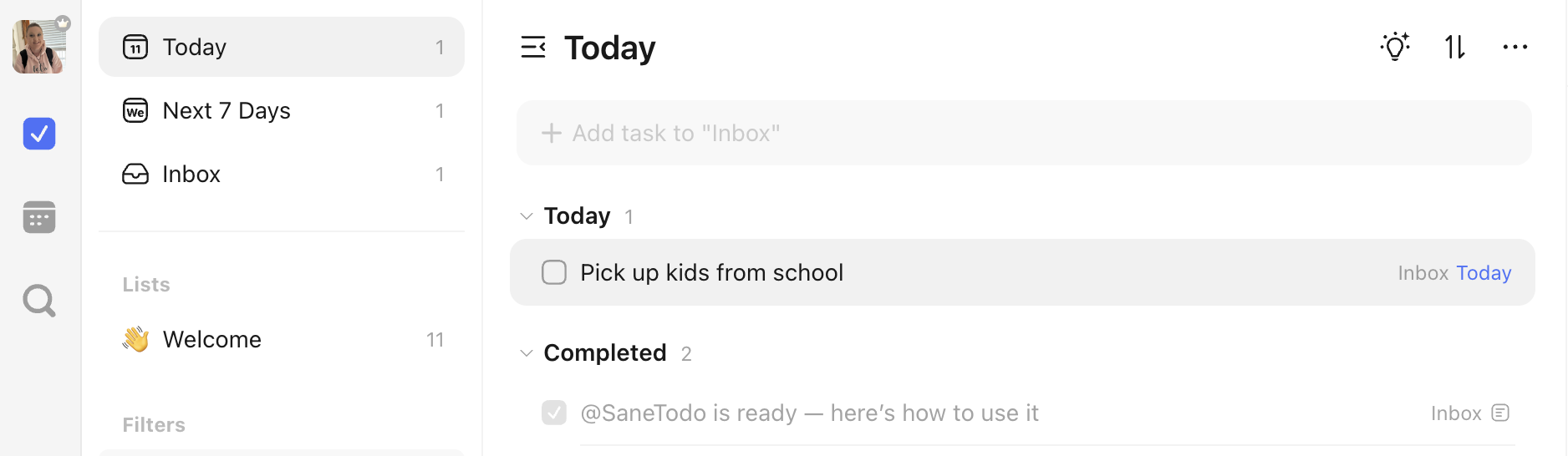
See Your Tasks in your ToDo list app:
Open your app or web dashboard.
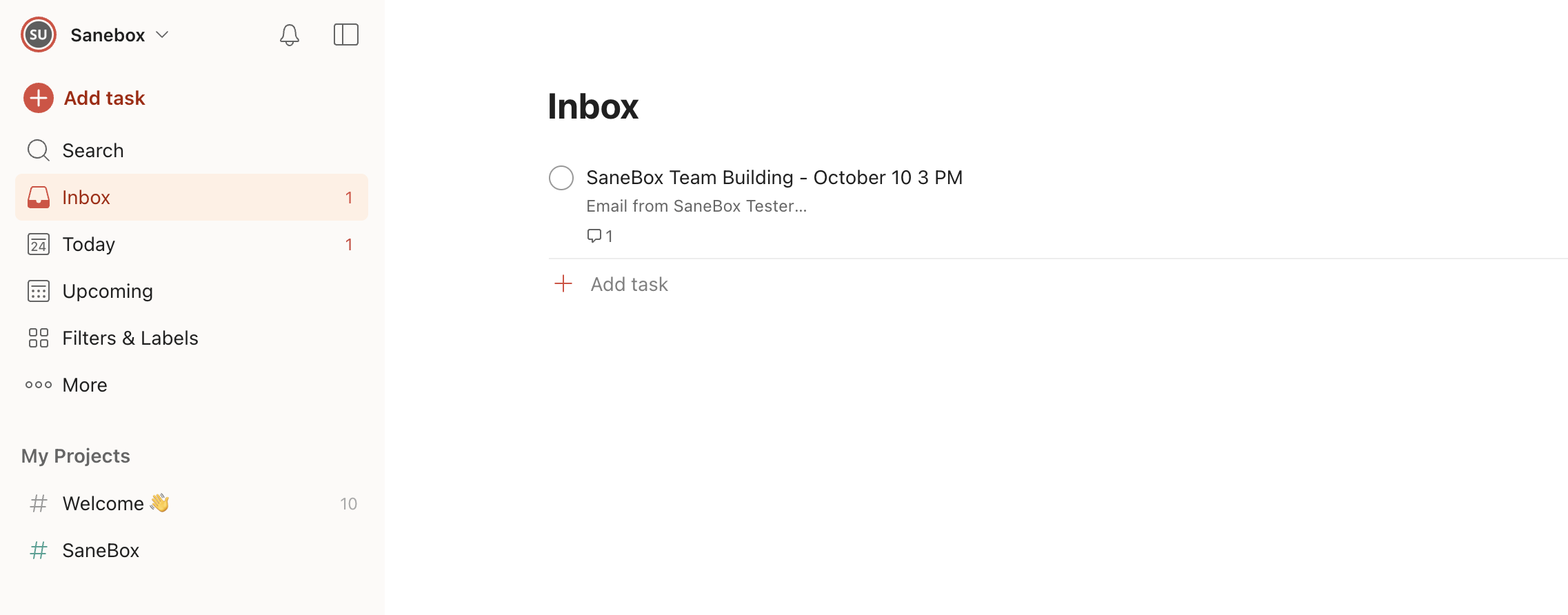
- Your email is now waiting as a task — with the subject line as the task name and the full email attached for reference.
Batch Create Tasks
- Drag multiple emails into @SaneTodo at once.
- Each email appears as a separate task.
Full Context Included
The original email is stored with the task, so you never lose important details.
✨ Benefits
- Seamless Workflow: Go from inbox to your to do list app with zero copy-paste.
- Always Accessible: Works with every device, every email client.
- Batch Power: Process a backlog of emails into tasks in seconds.
- Stay Organized: Keep your inbox clear while to do list app tracks the work.
✅ Pro Tips
- At the end of the day, sweep your inbox by dragging everything actionable into @SaneTodo — tomorrow’s to-do list will be waiting in your to do list app.
- Use labels, priorities, and due dates to fine-tune your new tasks.
- Regularly review your SaneTodo-created tasks to keep projects on track.
🙋 FAQ
Q: Where do my tasks show up?
A: They appear in your Inbox in your To-do list apps by default. You can then move, label, or prioritize them as needed.
Q: Can I drag emails from any client?
A: Yes — Outlook, Gmail, Apple Mail, mobile clients — all supported.
Q: Does it work with batch selections?
A: Absolutely. Dragging multiple emails at once creates multiple tasks instantly.
Try it now: Drag your first email into @SaneTodo, then open your to do list app . Your task will be waiting.