How to Make Sure You Never Miss an Important Email
Worried that SaneBox might move an important email out of your Inbox? There are several ways to keep an eye on your Sane folders and tell SaneBox which messages should always get your attention.
The more you train SaneBox, the better it becomes at recognizing what belongs in your Inbox.
Review Your SaneBox Digest
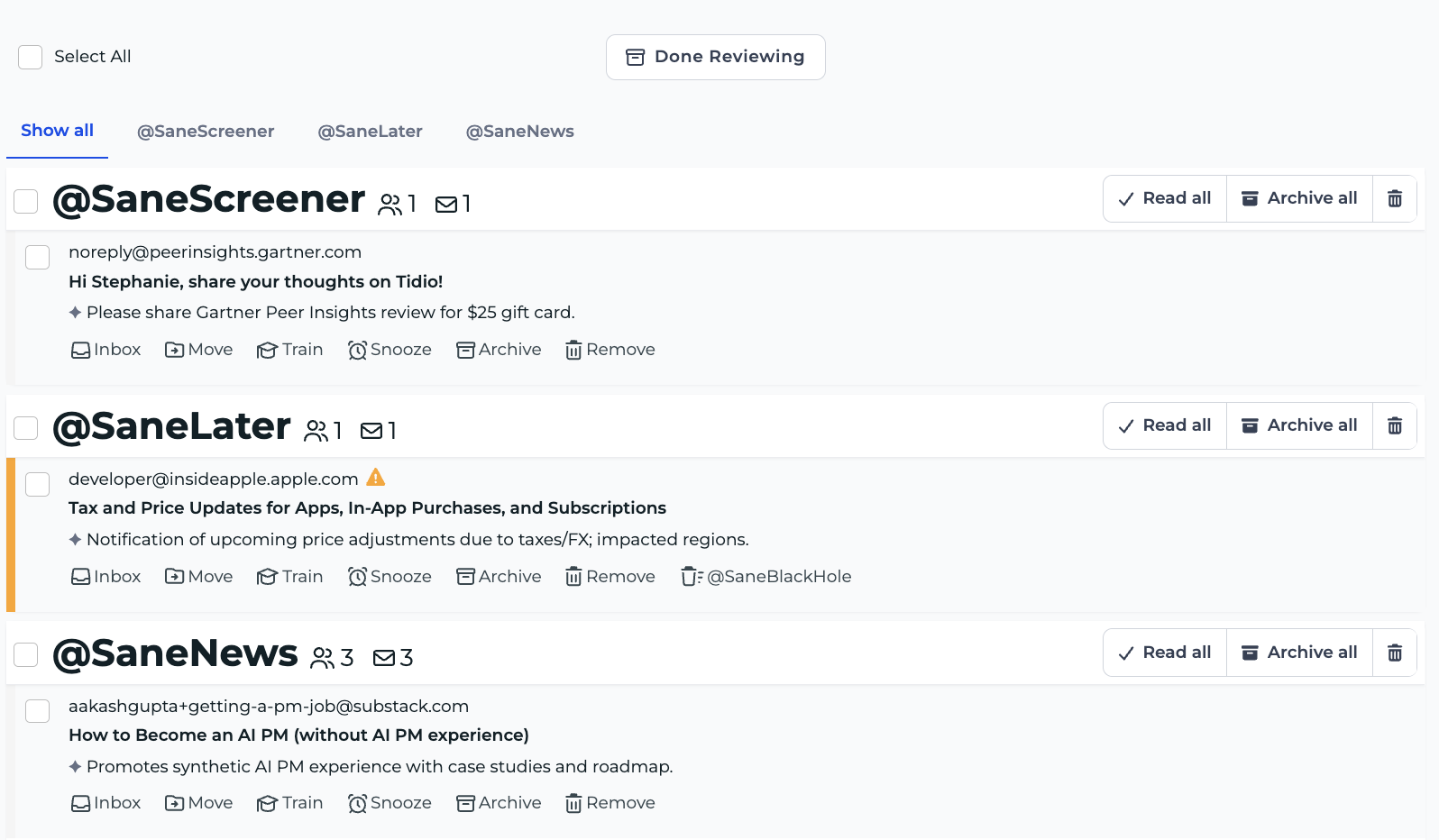
Your SaneBox Digest gives you a quick overview of new, unread messages that have been moved out of your Inbox.
Instead of checking each Sane folder individually, you can use the Digest to quickly review what SaneBox has filtered and catch anything you’d rather have in your Inbox.
From the Digest, you can also take action on messages and correct SaneBox when necessary.
Open your Digest anytime
You don’t have to wait for a scheduled Digest. When your Digest is ready, you can select Open Digest Now to review it.
This makes the Digest a handy safety net while SaneBox is learning your preferences.
Choose How Often You Receive Your Digest
-
Want to check your filtered mail more frequently? You can customize your Digest schedule.
-
Go to your Digest settings and choose the days and times you’d like your Digest delivered.
You can also schedule frequent Digests, including:
- Every hour
- Every 2 hours
- Every 4 hours
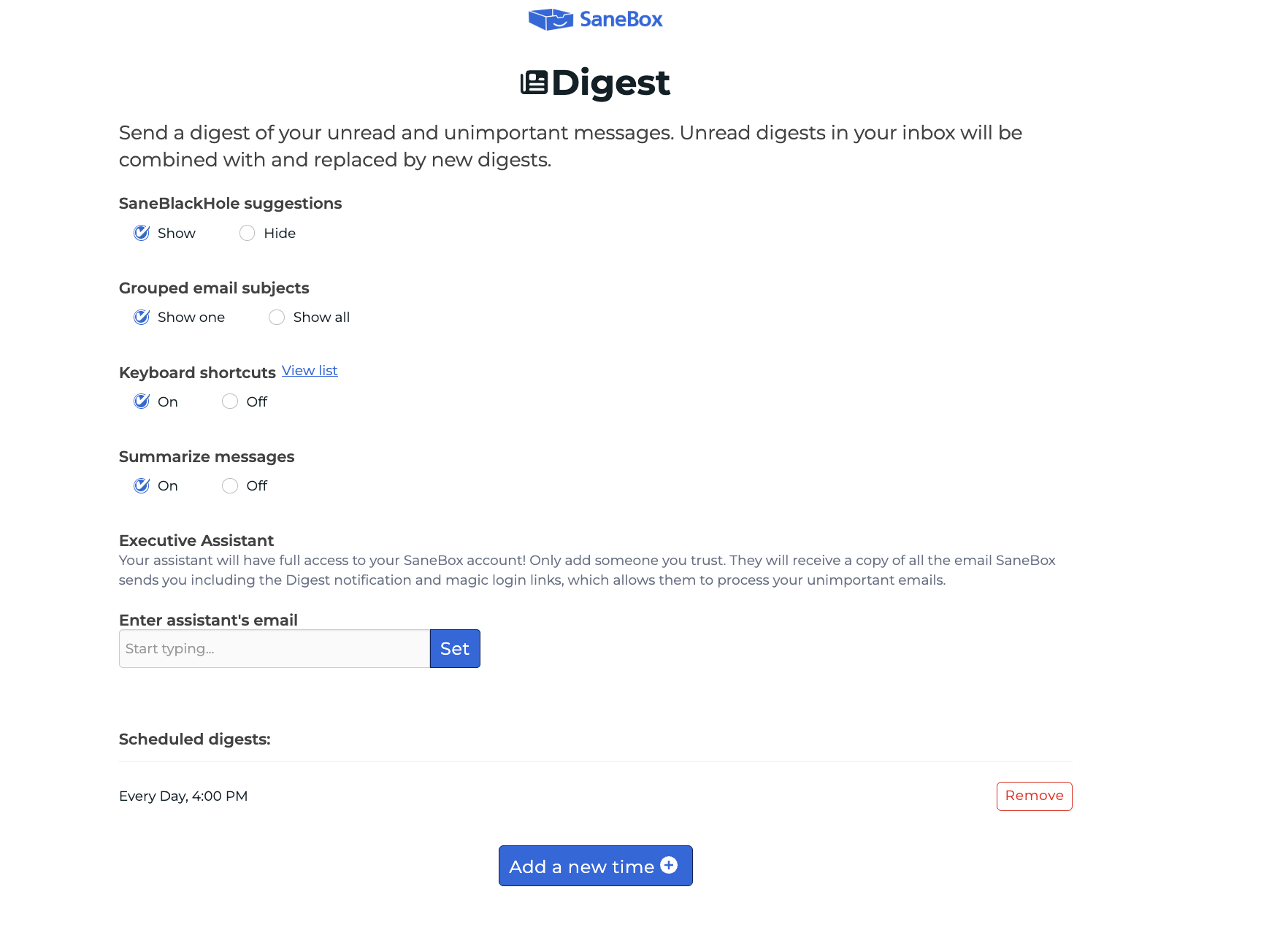
Digests are only generated when there’s new unread mail to show, so you won’t receive an empty Digest just because one is scheduled.
Hourly Digest delivery
Hourly Digests are delivered between 8 AM and 8 PM.
Train Important Senders to Your Inbox
If SaneBox puts an important message in the wrong folder, train it to your Inbox.
Training tells SaneBox that messages from that sender are important to you and helps improve how future messages are handled.
You can train messages from your SaneBox Dashboard, Digest, or by moving the message to the appropriate folder in your email client.
The goal isn’t to make SaneBox perfect on day one. Your corrections teach it what your important email looks like.
Control How Email Sent to Your Aliases Is Handled
If you receive email at multiple addresses or aliases, you can control how SaneBox handles mail sent to each one.
Go to Trainings & Filters → Email Aliases.
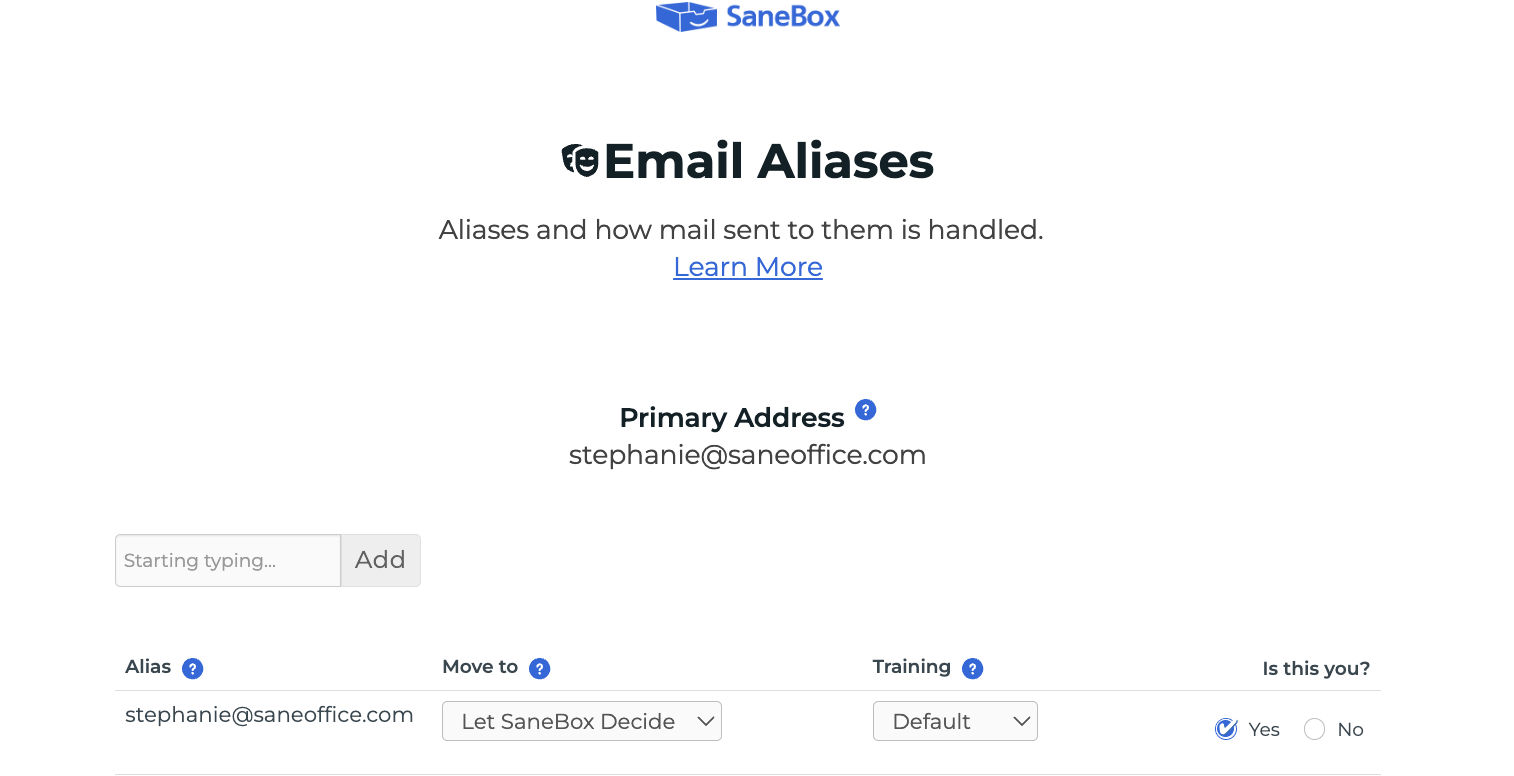
For each alias, you can choose whether to:
- Let SaneBox Decide where messages belong
- Send messages received at that address to a particular destination
- Control how your existing SaneBox training interacts with the alias
- Tell SaneBox whether a detected address actually belongs to you
This can be especially useful if one of your email addresses regularly receives important messages such as customer inquiries, support requests, or sales leads.
Decide How to Handle New Senders
If you regularly receive important messages from people you’ve never emailed before, such as prospective customers, website inquiries, or new clients, you may want to be more cautious with unfamiliar senders.
You can adjust how SaneBox handles messages from new or unknown contacts so more of them remain in your Inbox.
Learn how to control what stays in your Inbox.
Use Subject and Domain Filters for Predictable Mail
Sometimes you already know that certain types of email should always go to a particular place.
SaneBox gives you additional filtering tools for those situations.
Subject Filters
Create a rule based on words or phrases in the subject line.
This can be useful when important messages consistently contain recognizable subjects, such as:
- “New lead”
- “Support request”
- “Payment received”
- “Appointment request”
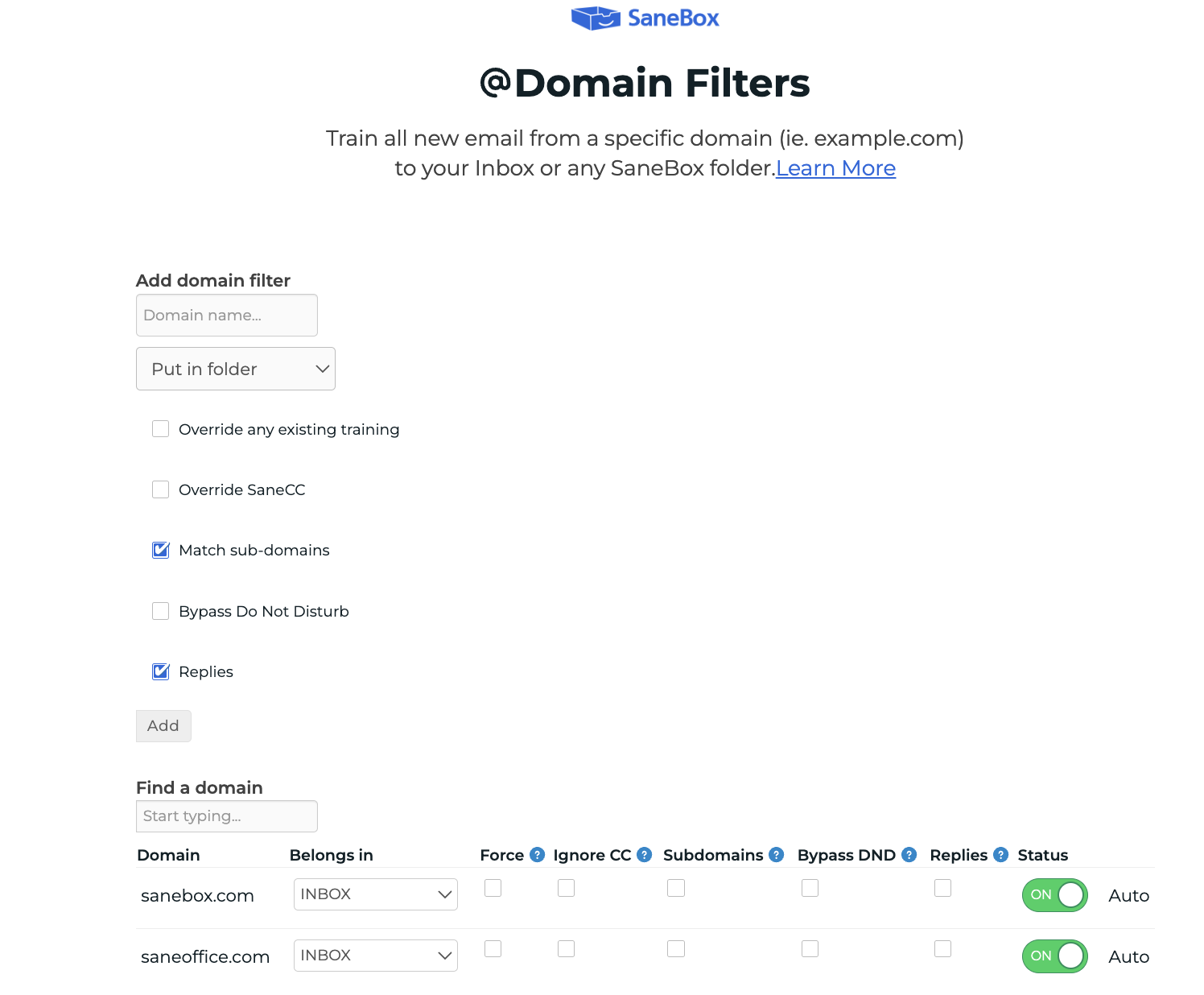
Domain Filters
Create a rule for messages from an entire email domain.
For example, if messages from everyone at importantclient.com should receive the same treatment, you can create a Domain Filter instead of training each person individually.
You can manage Trained Contacts, SaneBlackHole, Subject Filters, Domain Filters, and Email Aliases from your Trainings & Filters settings.
Your Inbox Should Be for What Matters Now
-
SaneBox isn’t designed to make messages disappear. It separates email that needs your immediate attention from email that can wait.
-
Your Inbox should contain the messages you want to see now, while folders such as @SaneLater give lower-priority email a place to wait without being deleted.
-
Your Digest provides another opportunity to review that filtered mail, and training lets you correct SaneBox whenever it gets something wrong.
-
As you continue using and training SaneBox, its filtering adapts to your preferences.
Still Concerned About Missing Something?
If important messages are consistently being filtered incorrectly, don’t just keep moving them back manually. Check your Trainings & Filters settings or contact SaneBox Support.
We can help determine whether a sender training, Subject Filter, Domain Filter, alias setting, or another rule is affecting those messages.