What is SaneBox?
SaneBox is an email management tool that works with your existing email account. It creates specialized folders and provides tools that help you prioritize important messages, organize less urgent email, reduce interruptions, and manage your inbox more efficiently.
You can continue using your preferred email app. SaneBox works in the background to organize your messages based on the features you enable and the training you provide.
What is considered a feature?
A feature is generally anything you can enable, disable, or create from the Folders page of your SaneBox account.
Each enabled feature counts toward your subscription’s feature limit. Depending on your plan, this may include SaneBox folders, custom training folders, snooze folders, and other email management tools.
For example, @SaneLater and @SaneNews each count as one feature. A custom training folder that you create also counts as one feature.
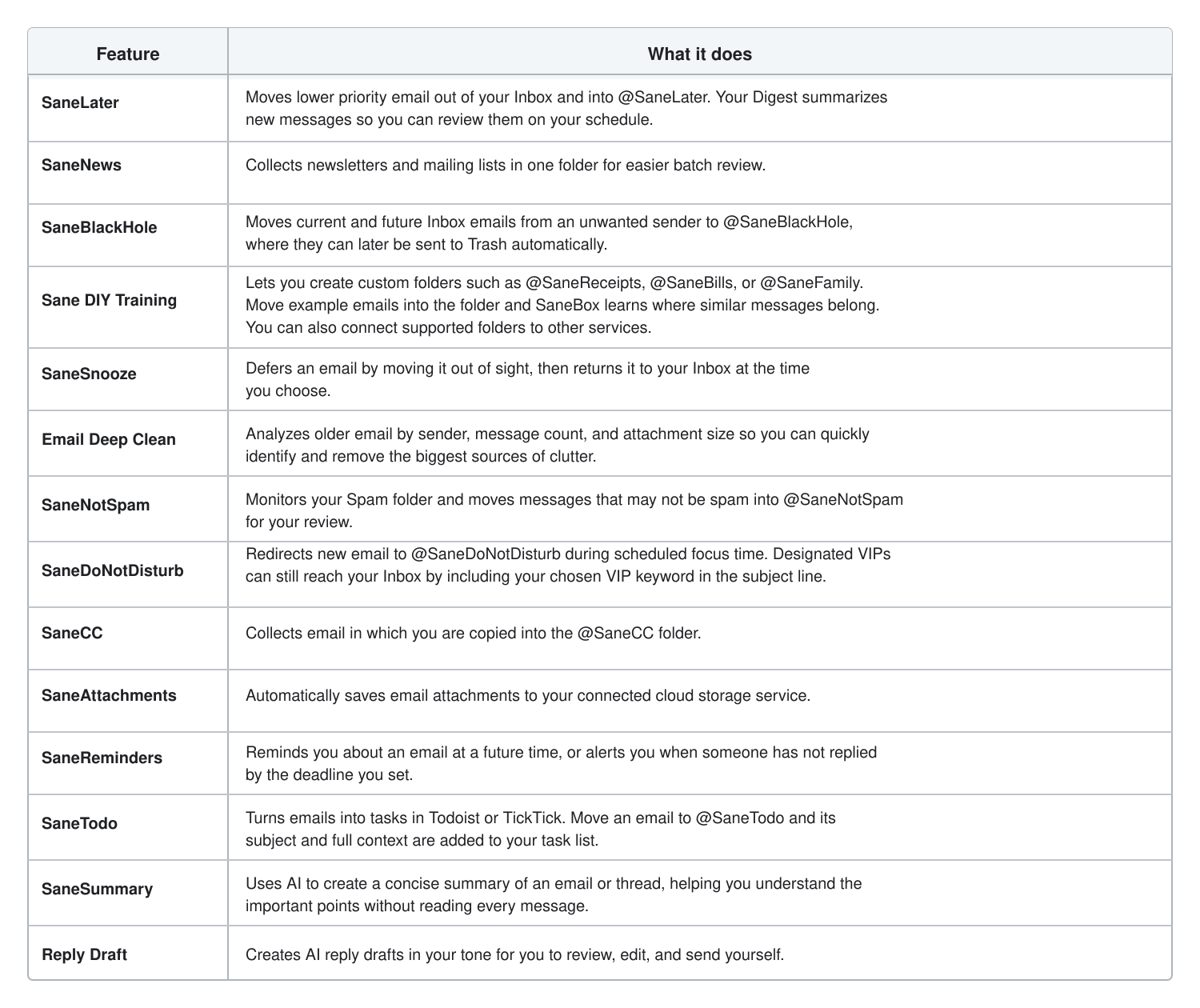
What features are available?
SaneBox offers features for filtering, organizing, reviewing, deferring, summarizing, and responding to email.
Some of the most commonly used features include:
- SaneLater: Moves lower priority email out of your Inbox and into @SaneLater. Your Digest summarizes new messages so you can review them on your schedule.
- SaneNews: Collects newsletters and mailing lists in one folder for easier batch review.
- SaneBlackHole: Moves current and future Inbox emails from an unwanted sender to @SaneBlackHole, where they can later be sent to Trash automatically.
- SaneCC: Collects messages in which you are copied into the @SaneCC folder.
- SaneSnooze: Temporarily removes an email from your Inbox and returns it at the time you choose. Available folders may include @SaneTomorrow and @SaneNextWeek. You can also create snooze folders for custom timeframes.
- Sane DIY Training: Lets you create custom folders such as @SaneReceipts, @SaneBills, or @SaneFamily. Move example messages into the folder and SaneBox will learn where similar email belongs.
- SaneReminders: Reminds you about an email at a future time or alerts you when someone has not replied by the deadline you set.
- SaneTodo: Turns emails into tasks in Todoist or TickTick. Move an email into @SaneTodo and its subject and full context will be added to your task list.
- SaneSummary: Uses AI to create a concise summary of an email or thread, helping you understand the important points without reading every message.
- Reply Draft: Creates AI generated reply drafts in your tone. Drafts appear in your normal Drafts folder for you to review, edit, and send yourself. Nothing is sent automatically.
What happens when I enable or disable a feature?
SaneBox may need approximately 5 to 30 minutes to update your account after a feature is enabled or disabled.
When you enable a folder based feature, the new folder may take a few minutes to appear in your email application. If you do not see it, try restarting or refreshing your email app.
Some email programs, including certain versions of Outlook, may also require you to subscribe to the new folder through the application’s IMAP folder settings.
Choosing features for your plan
You can enable, disable, or replace features whenever your needs change. If you have reached your plan’s feature limit, you can turn off a feature you no longer use before enabling another one.
You can manage your enabled features at any time from the Folders page.
By choosing the features that best fit your workflow, you can reduce inbox clutter, protect your focus, and spend less time managing email.