Before You Start
- POP and IMAP access are disabled by default in Outlook.com.
- SaneBox requires IMAP access (POP is not supported).
- Outlook.com uses Modern Authentication (OAuth2) for secure sign-in.
Step 1: Enable IMAP in Outlook.com
You must enable IMAP access before connecting to SaneBox.
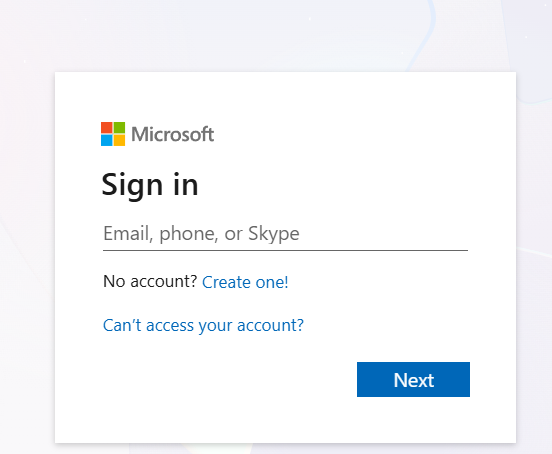
- Sign in to Outlook.com.
- Click Settings (⚙️) in the top-right corner.

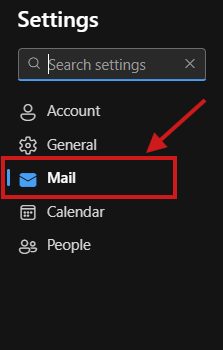
- Select Mail.
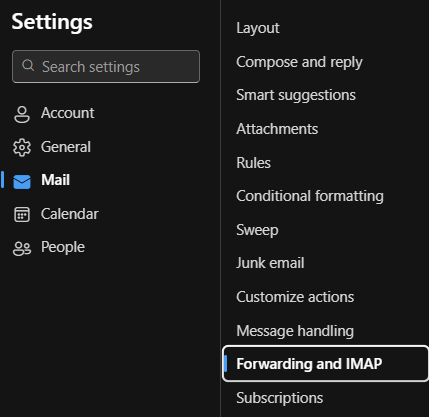
- Go to Forwarding and IMAP.
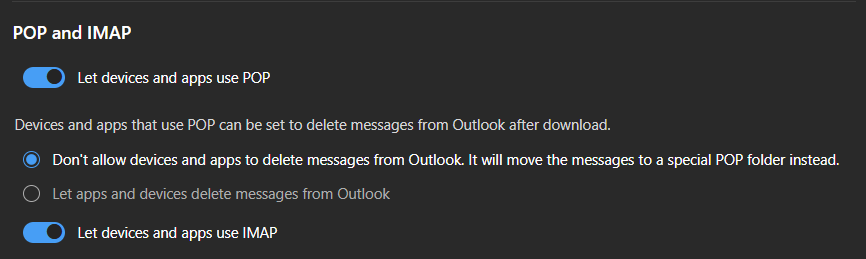
- Under POP and IMAP, toggle Let devices and apps use IMAP to ON.
- Click Save.
Step 2: Sign Up for SaneBox
- Go to SaneBox.com and click Sign Up.
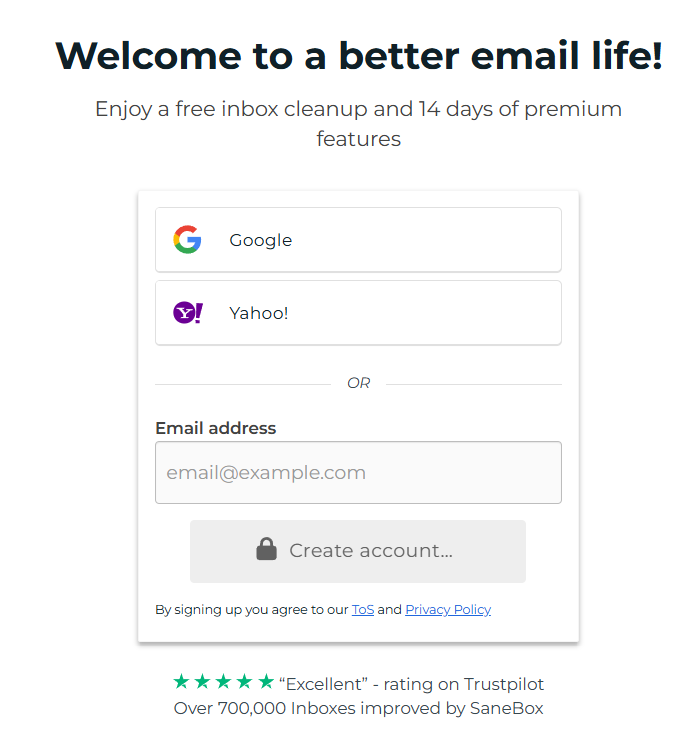
- Enter your full Outlook.com (or hotmail.com / live.com) email address.
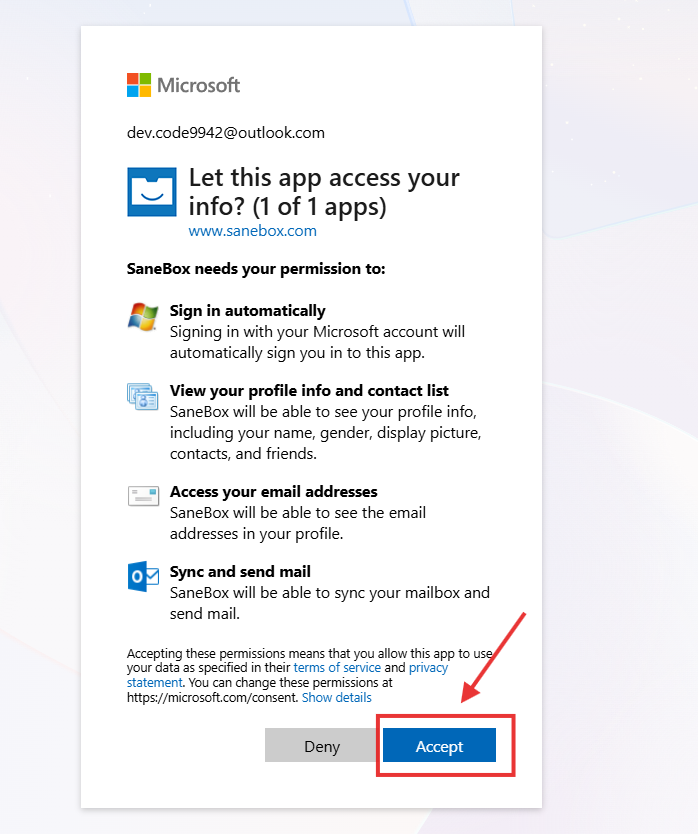
- When prompted, sign in using your Microsoft account credentials.
- Approve the permissions request to allow SaneBox secure access to your mailbox.
Troubleshooting Connection Errors
- If you receive an IMAP connection error:
- Go to: https://account.live.com/activity
- Sign in with your Outlook.com account.
- Under Recent activity, locate the login attempt that matches the time of the error.
- Expand the entry and select “This was me.”
- Return to SaneBox and try connecting again.
Need Help?
If you’re still unable to connect your Outlook.com address to SaneBox, contact SaneBox Support and include:
- Your email address
- A screenshot of the error (if available)
- Confirmation that IMAP is enabled
We’ll be happy to help you get set up quickly.